
Sims 4 Save File Corruption: Signs, Fixes & Prevention Tips
Save file corruption or corruption of game elements is a frequent issue for many players in The Sims 4. Whether you're trying to create a multi-generational Sims legacy or building the perfect household, encountering a corrupted save can be frustrating. In this guide, we’ll show you the main signs your Sims 4 save is corrupted, and step-by-step solutions to fix corrupted saves. You’ll also find suggestions for preventing save corruption in the future.
Signs of Save File Corruption in The Sims 4
— Infinite loading screen when entering gameplay via the “Resume Game” menu, switching game modes, or when Sims are traveling between lots.
— Error codes 102, 109, 110, 111, 122, 135 appearing when trying to load a family or lot in your Sims 4 save.

— Game crashes without error messages when loading a particular save file.
— Crash on entering CAS (Create-a-Sim) for a specific Sims 4 household.
What to Do if Your Sims 4 Save File Is Corrupted
1. Remove the Mods folder
Move the entire Mods folder out of your Sims 4 directory. If the game works fine without mods, your save is likely okay, and the issue is with one or more outdated or broken mods. Update or remove any incompatible mods for Sims 4. If the problem persists, continue troubleshooting.
2. Remove the Tray folder
Move the Tray folder out of the Sims 4 directory temporarily. If the problem disappears, the issue lies within the Tray files (which store lots and households). Make sure this folder contains only valid Sims 4 files: remove any archives, package files, or unsupported file types. If the problem persists, continue troubleshooting.
3. Remove the Saves folder if game won't load to the main menu
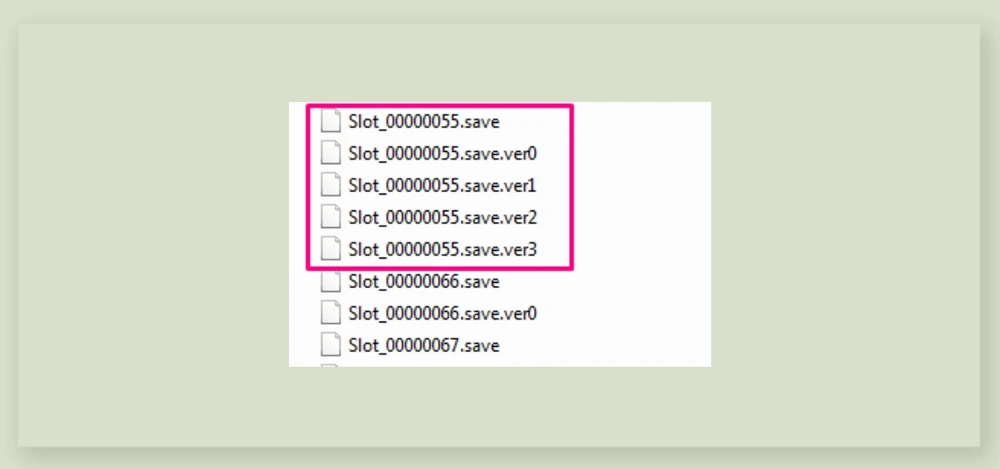
If Sims 4 stops loading before reaching the main menu, move the Saves folder out entirely. If the game launches, one of your save files is severely corrupted. Add saves back one by one to identify the defective file. Remember that each save file in Sims 4 may include up to 5 components.
4. Repair The Sims 4 using your game client
If save corruption issues persist, use the “Repair Game” function in your platform (Steam, EA App, Origin, etc.). Be sure to clear the Sims 4 cache first (see our guide "Clear Sims 4 Cache: Fix Lags & Slow Loading (Windows & macOS)”).
5. Restore an earlier save or use backup save files
Sims 4 automatically keeps the last 4 save points for each game. If recent saves are corrupted, revert to an earlier one or restore from backup. Keep in mind, restoring a save will overwrite progress: make sure the corruption isn’t caused by mods or faulty Tray files first.
6. Start a new save
If none of the above methods recover your Sims 4 save, your only option may be to start a new save file.
How to Prevent Sims 4 Save Corruption and Data Loss
1) Make regular backups of important lots, families, and your main save file. This lets you restore progress before corruption occurs or transfer Sims and builds to a new game.
2) Save important Sims to your library at every life stage to make recovery easier in case of corruption.
3) Monitor Mods, Saves, and Tray folders: clear out broken or duplicate files and keep everything up to date. Update Sims 4 mods regularly.
You might also like...



4) Update all mods and CC to match your current game version: do not use outdated mods, even if they seem to work. Mods like Control Any Sim are known to cause corruption.
5) Clear the Sims 4 cache after any changes to Mods, Saves, or Tray folders to reduce broken script errors.
6) Download only compatible builds and Sims for your version of the game, preferably from trusted Sims 4 community sites. Avoid reuploads from unverified sources.
7) Follow creators whose builds or Sims you use: often, they notify when a particular lot or Sim is broken.
8) Minimize use of the Sims 4 gallery and downloaded content, as not all uploads are properly checked or cleaned.
9) Avoid using the “Demolish” button (bulldozer icon) in Build Mode: instead, use the sledgehammer tool for safer demolition.
